
Add an app
- Open Settings › Integrations.
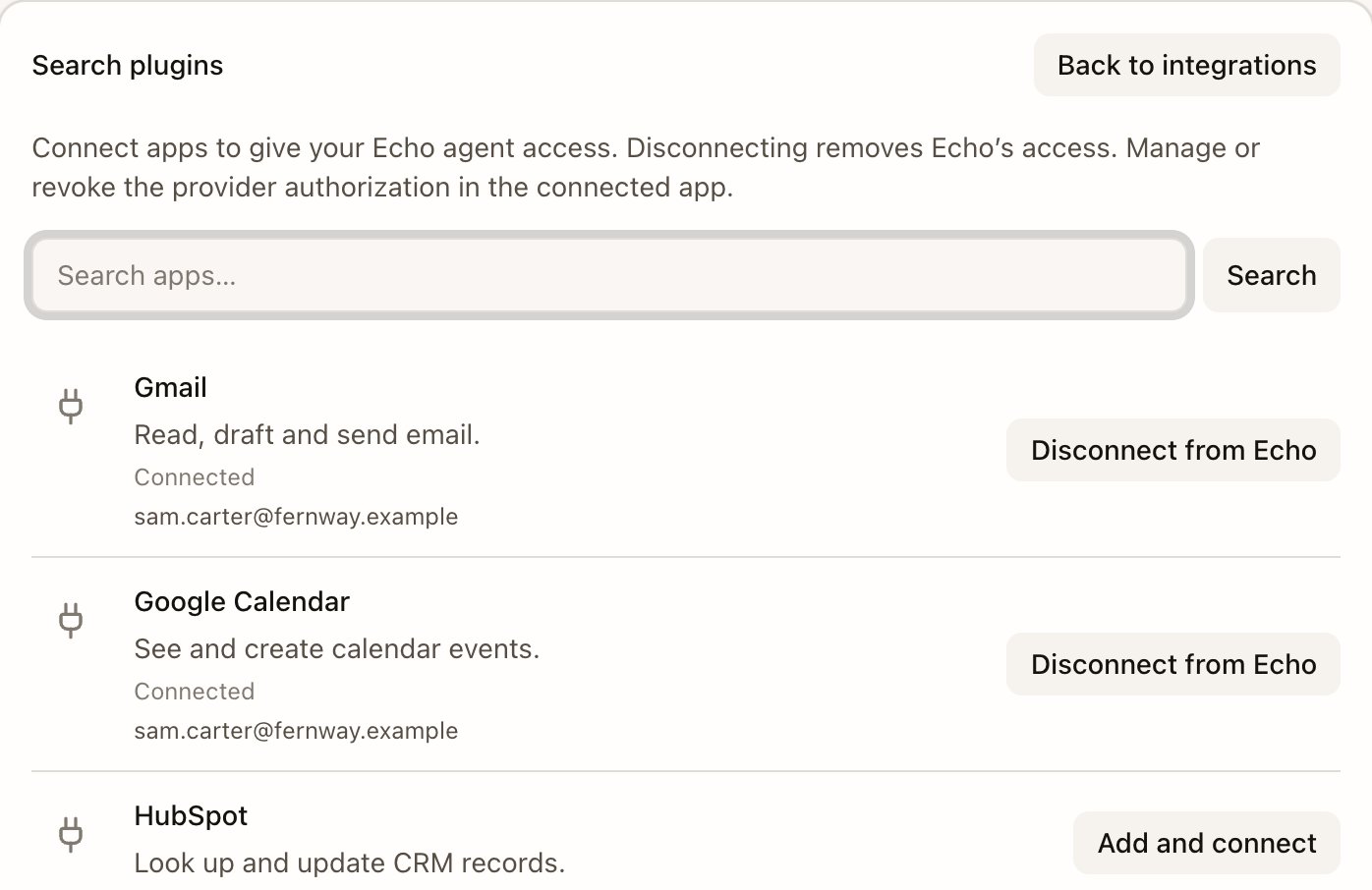
- Under Plugins, select Search plugins and type the app’s name in Search apps….
- Select Add and connect and sign in to that app in your browser.
Password managers and other credential tools can’t be connected.
Approve each action
When Echo wants to use a connected app, it stops for your approval. Review the app, the account, the exact action and where it goes before approving. Desktop 0.1.87 shows the approval request and its result directly in the conversation. Earlier versions show Review this action, with Full action details for the contents. The screenshot below shows that older interface.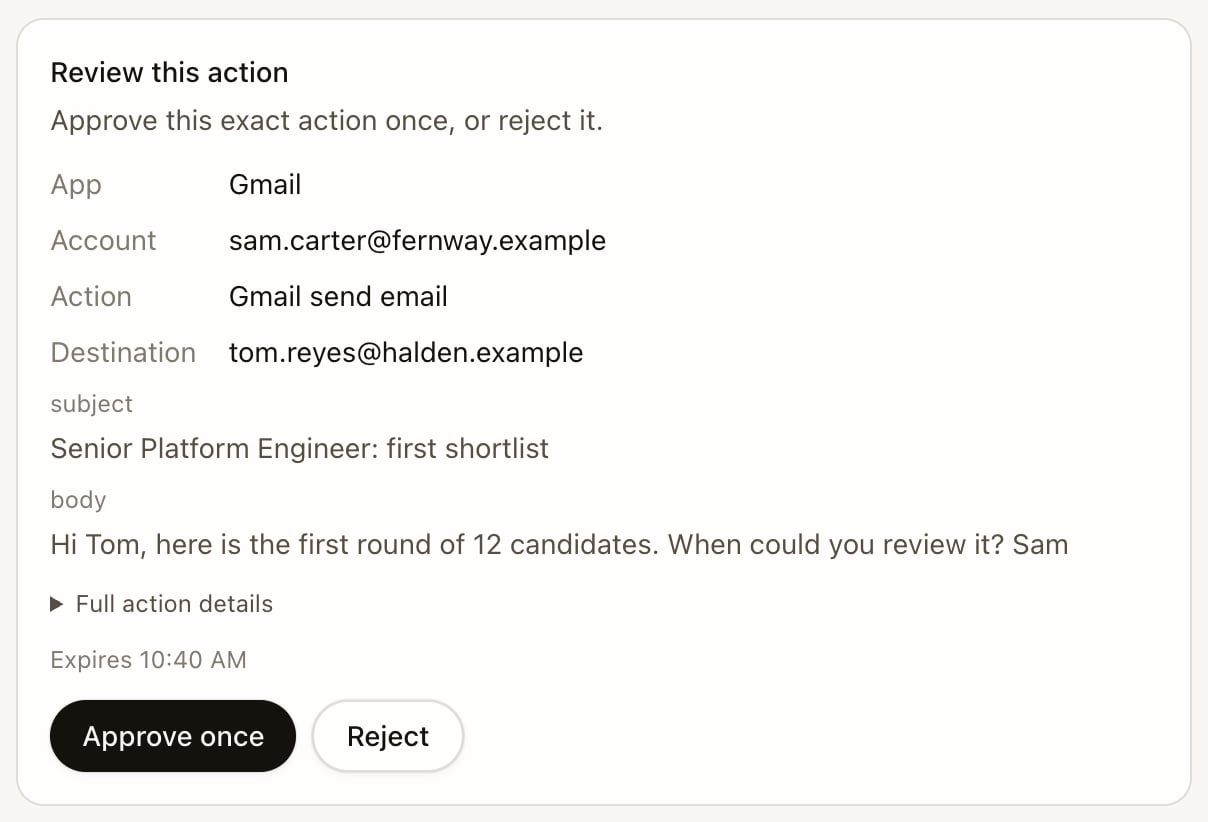
Connecting an app is not approval to act. Read the exact request even when an app is already connected. If your build doesn’t show inline approvals, update to desktop 0.1.87 or later. See Release status.
AI usage
Echo’s general AI allowance is monthly. An unlimited AI pilot is enabled as of October 27, 2026; it removes that monthly limit while keeping usage records. Candidate shortlist balances, transcription allowances and operational safety limits remain separate. Desktop 0.1.87 shows AI usage in Settings › Account & workspace, with the percentage remaining and reset date, or No AI limit. Older builds may still say Daily agent actions or Daily usage. Those older labels do not describe the monthly allowance. See Plans and AI usage.- From the conversation, ask “Connect my Gmail” and Echo replies with a link to sign in. Echo can then search and read your email and save drafts, once you approve each one. Outlook connects the same way, read-only. This connection can’t send email.
- Add the Gmail plugin under Plugins. It can also send email, and Echo asks you to approve every message before it goes.